WebCentral Help

Using WebCentral

WebCentral is CCC’s portal for communicating with currently enrolled students and employees.

It’s where you go to check on college events and news.

  • For information about financial aid and their student account status
  • To see the college catalog and student handbook
  • See the college academic calendar for important dates, such as the last day to add classes and student breaks
  • Search for classes and register
  • Request transcripts
  • And much more

  • To access Time Clock
  • Access SharePoint to find college forms and information about college committees and departments
  • Access the employee help desk
  • Find the guest password
  • To schedule rooms
  • Use Turnitin.com
  • Update Canvas
  • And much more

CCC Helpdesk

College forms are not available on the CCC website; please use WebCentral to search SharePoint.

If you need additional assistance, please contact the CCC Helpdesk.

CCC Helpdesk

Log in to WebCentral

Go to WebCentral

Email Address

Your Email Address is your first name (generally your full legal name) followed by the last 5 digits of your student ID # (lowercase with no spaces) @cccneb.edu.

Example: John Doe, Student ID-0123456
Email Address: [email protected]

Password: Your initial password is:

The letters and symbol ‘CCC#’ followed by the last 6 digits of your Social Security number. The ‘CCC’ must be capitalized!

Example: S.S. Number: 222-33-4444, password: CCC#334444

If you do not have a Social Security number, your initial password is the letters and symbol ‘CCC#’ followed by the full seven digits of your student ID number (including any leading zeros). The ‘CCC’ must be capitalized!

Example: Student ID #: 123 Password: CCC#0000123

Please be sure to set up a new password the first time you log in.
WebCentral Quick Guide for Students

My CCC

The description for My CCC Card

Student Planning

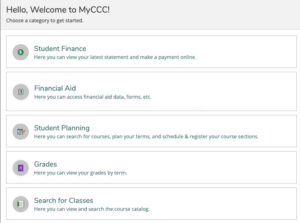
Screenshot of Welcome to MyCCC

  1. My Progress–view degree requirements, schedule required courses into semesters
  2. Plan and Schedule
    • Schedule
      • Plan times for classes
      • Register for classes
      • View class schedule
      • Drop classes through first day of semester
    • Timeline
      • View planned courses by semester
      • Move planned course to different semester
      • Delete planned courses from semester
      • Check final grades
    • Notes
      • Communicate with Advisor
  3. Unofficial Transcript
    • Located under the Student Planning tab

To get started: Click on My Services > MyCCC> Student Planning
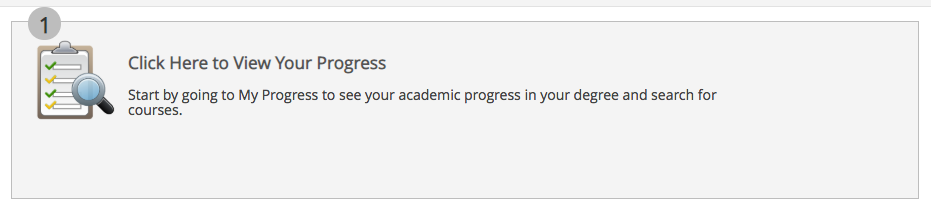
View Your Progress

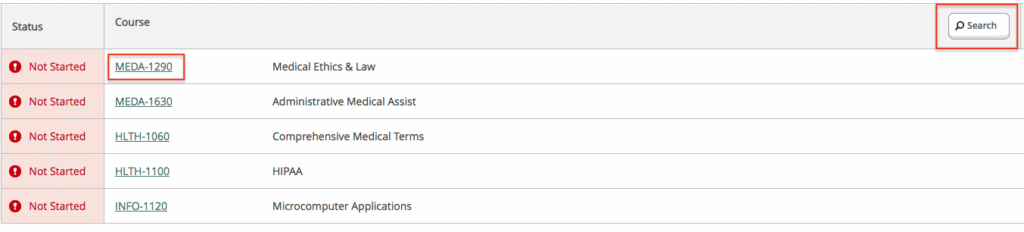
Screenshot of View Your Progress in MyCCC

Adding a Class to a Semester

Screenshot of adding a class to a semester

  • Click on the class or the search button
  • Select add course to plan

Screenshot of adding a course to the plan

  • Choose a term
  • Add course to plan

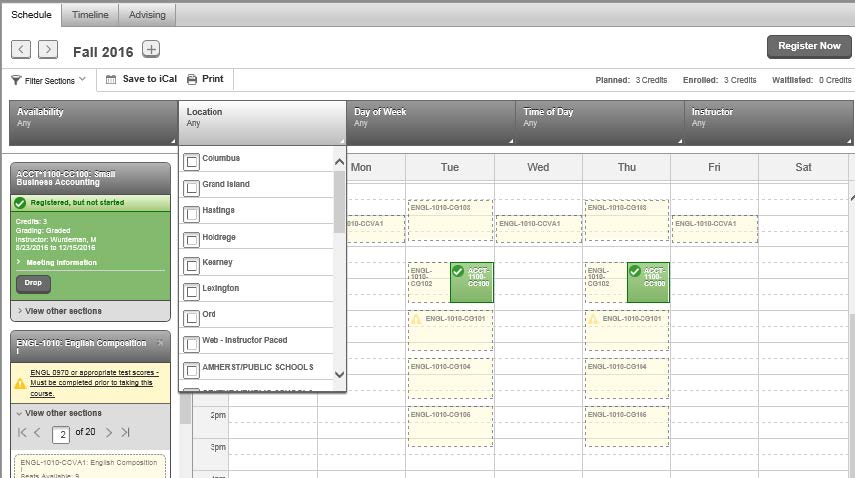
Plan Your Degree and Register for Classes

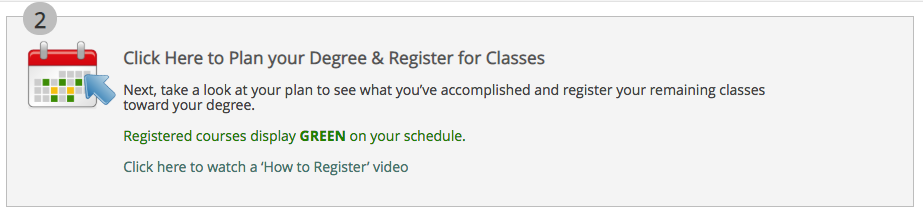
Screenshot of starting to plan your degree.
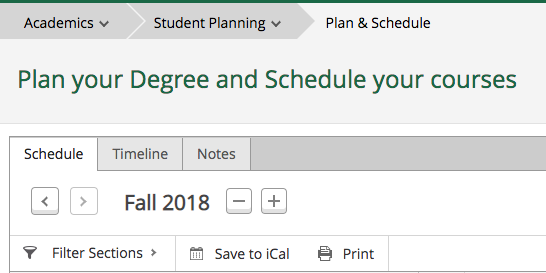
Screenshot of the planning degree and schedule courses

  • Use the left and right arrows to find the semester to register
  • Filter sections to see availability of courses by location
  • To remove a planned course, click on the ‘x’ and confirm removal
  • The drop button is available from the day registration opens through the first day of the semester
  • View other sections to see available class times
  • Registered classes will appear in green on the grid
  • Click the course with the yellow hazard symbol to find out the warning for this section.
  • Once the plan is set, select the “Register Now” button

Screenshot of the schedule

Contact Us

It is vital that you check your CCC email account daily.

Important college information is communicated through this account. Your CCC email address is: <your user name>@cccneb.edu. Example: [email protected]

Need help? Call the Service Center at 308-398-7999.

Service Center Hours

Columbus: 8 a.m. – 5 p.m.
Grand Island: 8 a.m. – 8 p.m.
Hastings: 8 a.m. – 8 p.m.