Your security is our top priority. CCC is expanding a multi-factor authentication service to help prevent identity theft and malicious cyber activity on CCC’s network to students.
Multi-factor authentication (MFA) means that your accounts and important information are locked behind something you know, such as a password, and something you have, such as your phone. With MFA, you enter a password when signing into CCC’s websites, which then prompts a response to your mobile or other devices.
Central Community College has implemented MFA to help secure your information, and it can be defined as the following:
You will be required to complete the additional security features to access Central Community College services on any device. This is an additional security challenge to prove your identity and keep your data safe. This can be in the form of a push notification through the Microsoft Authenticator app or safe ID token key.
You will need your computer and either a smartphone or a CCC-provided security token fob.
Use Microsoft Authenticator for the most flexible sign-in experience.
Use a security token fob if you do not have a smartphone.
Complete registration before accessing CCC services on a new device.
Microsoft Authenticator (Recommended): Requires a smartphone. Approve push notifications or generate one-time passcodes.
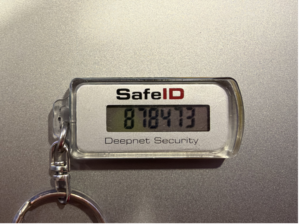
Security Token Fob (Alternative): Physical token supplied by CCC. Enter the changing code shown on the device.
Step 1: Open the registration page
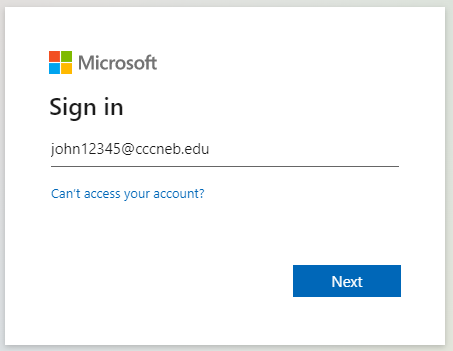
Open the MFA registration link shown on the first page. On the Microsoft sign-in screen, enter your full CCC email address, such as [email protected], and select Next.
Step 2: Start securing your account
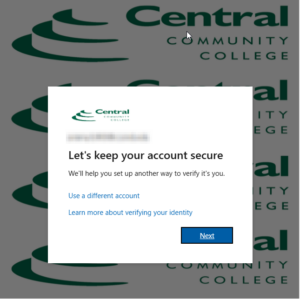
When the “Let’s keep your account secure” screen appears, select Next.
Step 3: Install Microsoft Authenticator
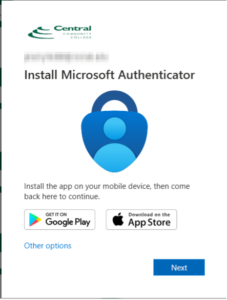
Install Microsoft Authenticator on your smartphone from Google Play or the Apple App Store. This is the approved authenticator app for this process. Return to the setup screen and select Next.
Step 4: Confirm the correct app
Verify that you are installing Microsoft Authenticator from Microsoft Corporation.
Continue through the prompts in Microsoft Authenticator and on the CCC registration page. When prompted during sign-in, approve the notification in the app using your device security, such as face recognition, fingerprint, or PIN.
Use this method if you do not have a smartphone or cell phone. Contact the Service Center and create a ServiceNow ticket to request a college-provided token.
Step 1: Choose another option
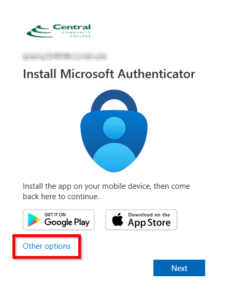
On the Install Microsoft Authenticator screen, select Other options.
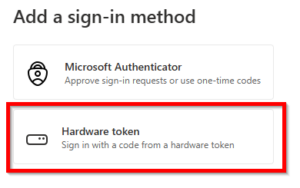
Step 2: Select Hardware Token
Choose Hardware token, then select Next.
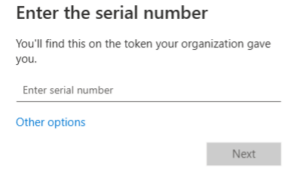
Step 3: Enter the serial number
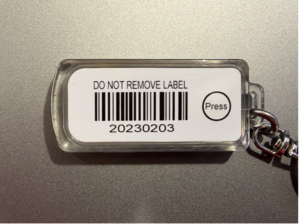
Enter the serial number printed on the label attached to the token. Do not remove the label.
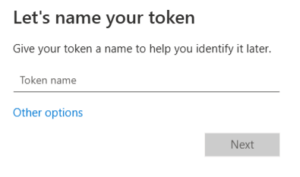
Step 4: Name the token
Enter a recognizable name for the device, such as “My CCC Token,” then select Next.
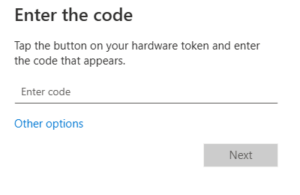
Step 5: Enter the displaying code
Press the button on the hardware token. Enter the code shown on its display, then select Next. The code changes every 60 seconds.
Contact the CCC Service Center if you need a security token or assistance completing registration at 308-398-7999.